Print and Page Setup
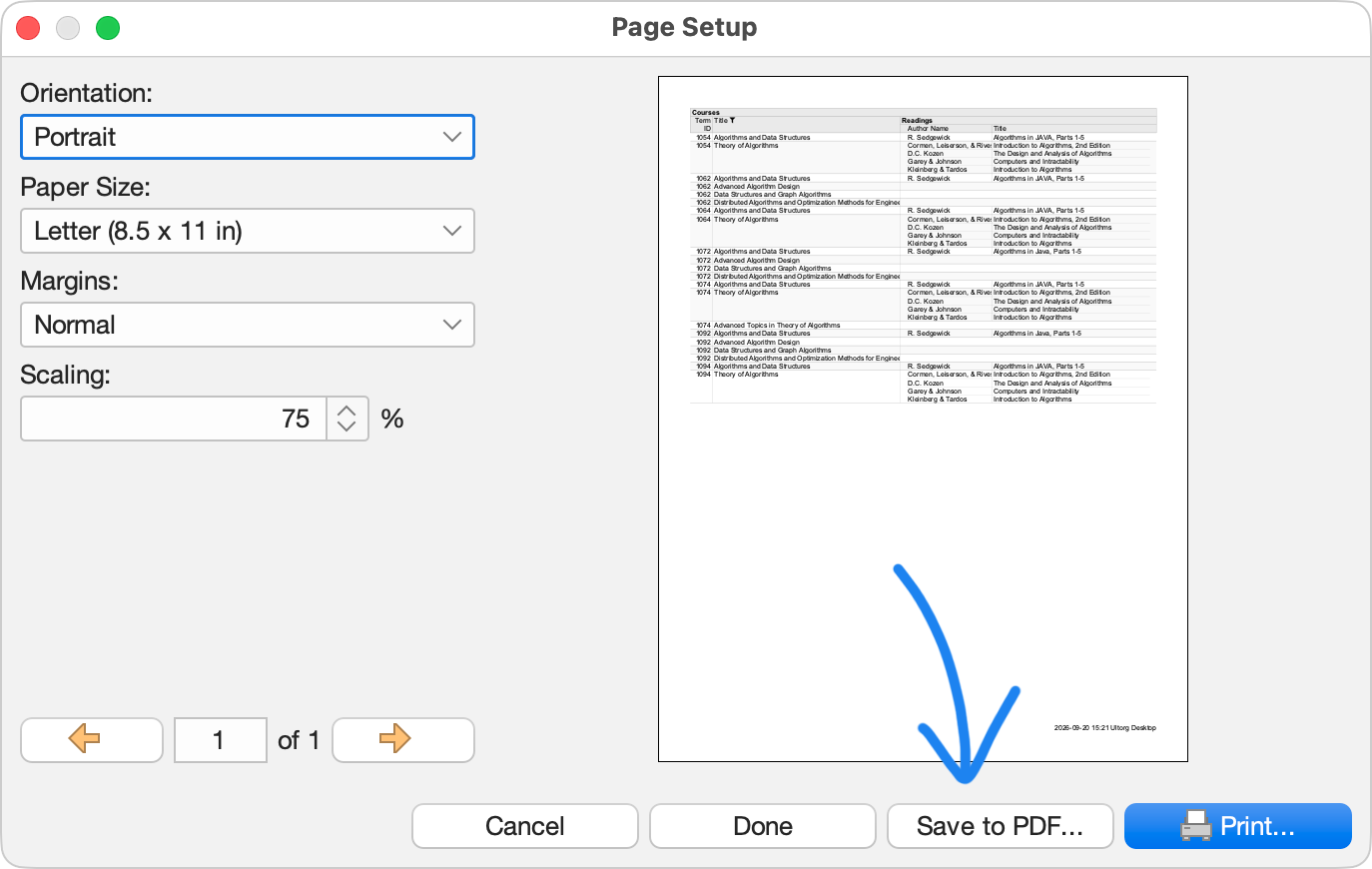
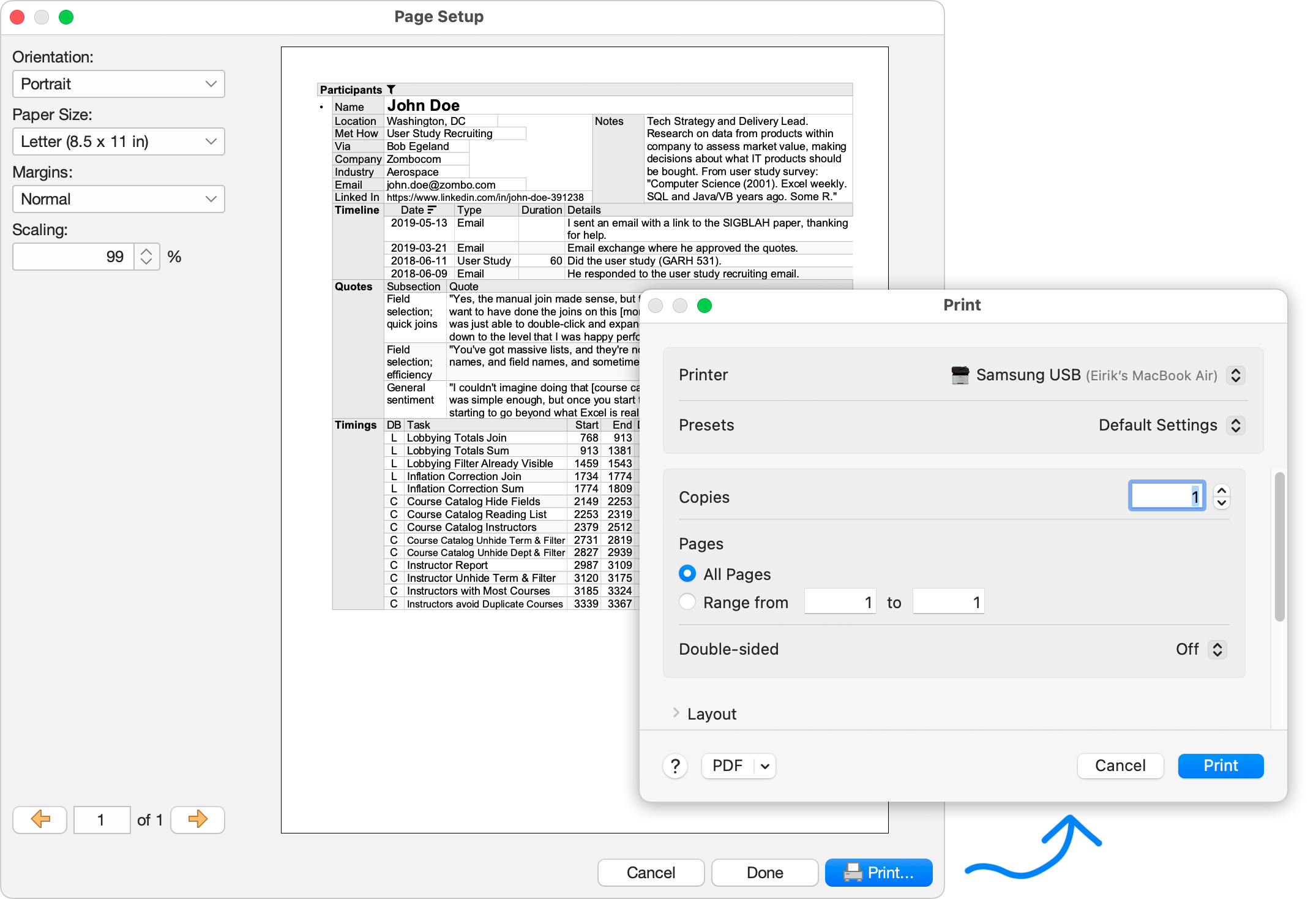
To print the current perspective, click Print ( ) from the toolbar or the File menu. A print preview will appear. Press the Print button to proceed.
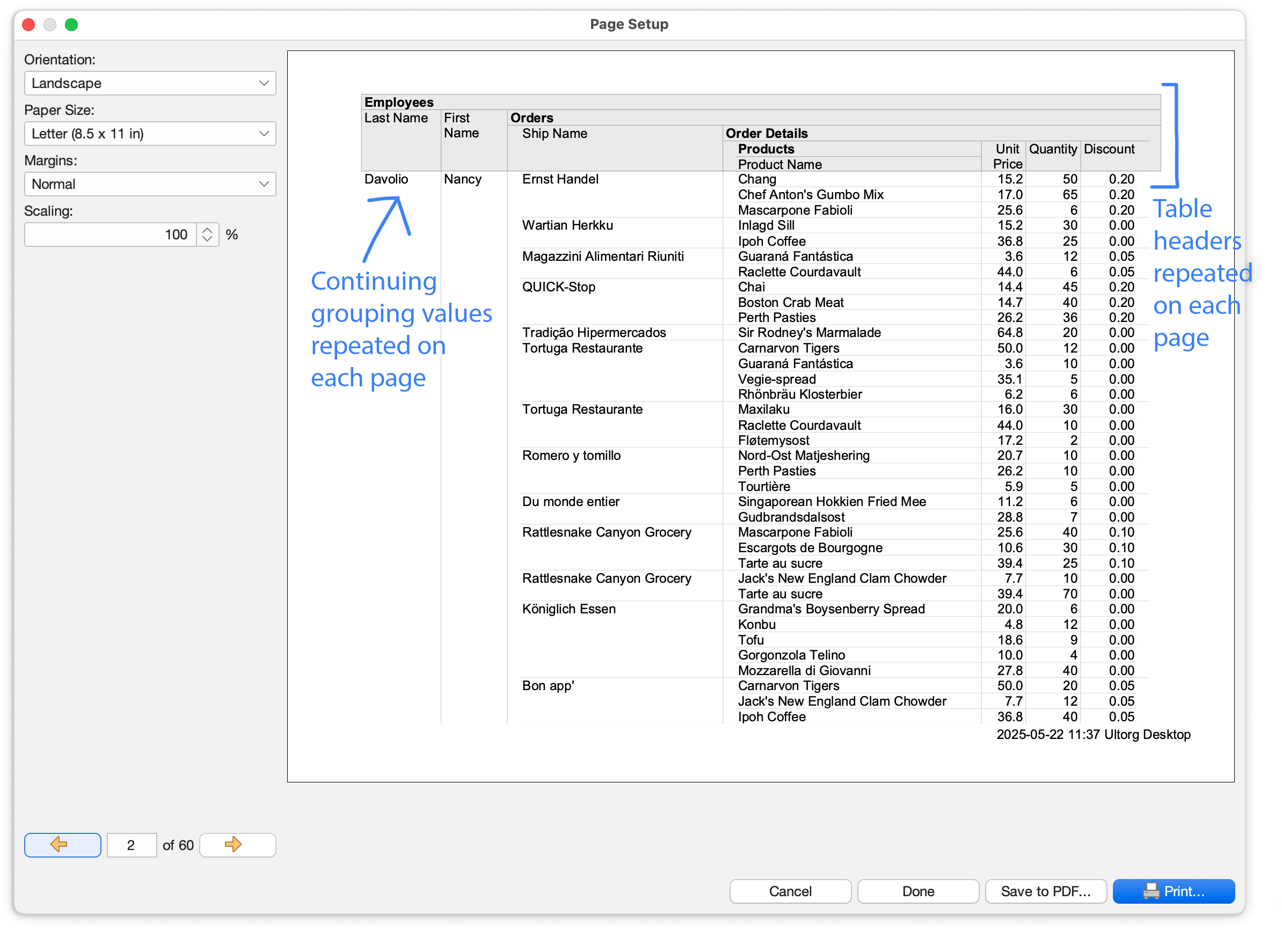
Printed result layouts repeat table headers and grouping values on each page.
Available Options
The font size (Scaling) and page orientation (portrait/landscape) is configured automatically to fit the width of the perspective. You can adjust these settings if desired. Changes to the page setup are saved when you press either Print or Done.
Print layouts include only the data that is actually loaded in the current perspective. To load more data, exit the Page Setup and scroll to the end of the perspective. Then press Print again.
Additional options, such as printer selection and double-sided printing, can be set from your operating system's print dialog, which appears as a final step.
Save to PDF
To create a PDF file from the current perspective, click Save to PDF in the print preview.