Fill with AI
The Fill with AI action uses artificial intelligence to stage data edits in an Ultorg perspective. The data showing in your perspective, including joins and one-to-many relationships, is sent to a Large Language Model (LLM) along with instructions that you provide in English.
Demo: Appraising Artworks with Joins and LLMs
In this demo, we estimate the dollar value of artworks in a database from the National Gallery of Art, using an LLM from OpenAI (gpt-4.1-mini) and the Fill with AI feature in Ultorg.
Using visual joins, we bring in timeline entries for each artwork, and other relevant information, from other tables in the database. This information gets passed to the LLM for use in the appraisal task. Results are written to an Excel file through an additional Custom Join.
Note: This feature requires Ultorg version 2.2.0 or above (2026-06-04) and an API key from either Anthropic or OpenAI.
How to Use
To make automated data edits using Fill with AI:
- In your current perspective, adjust fields and joins to show the data that you want the LLM to see as part of its context, as well as the field(s) to be edited.
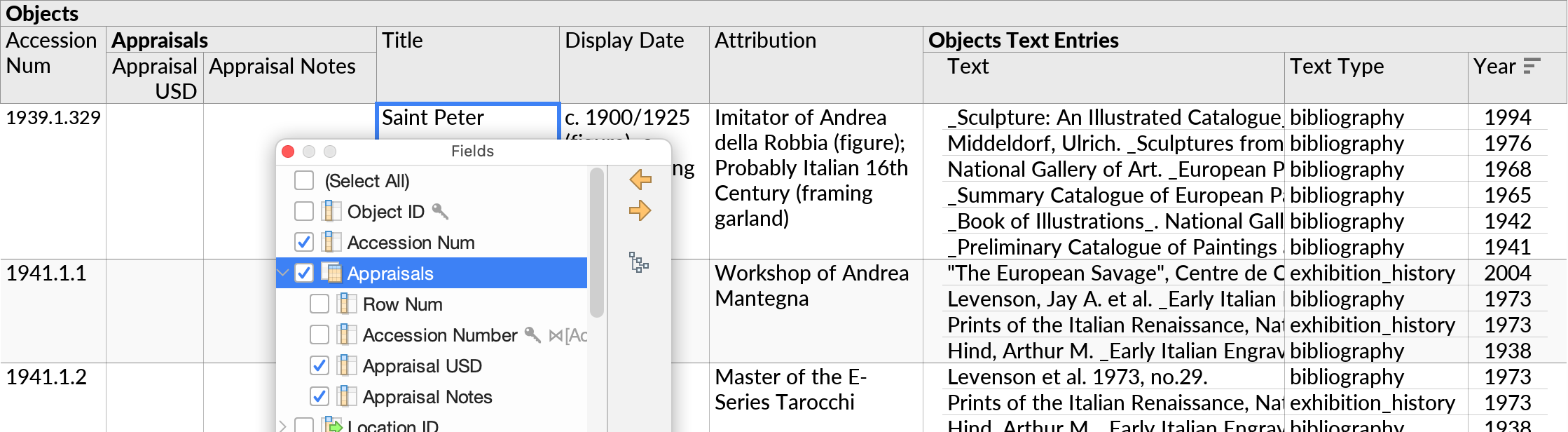
In the example from our demo above, we showed a list of artworks and a subquery with bibliographical entries for each, as well as a separate Appraisals subquery to pull in the table that we want to write our results to:
If you use a separate table to store results, as in this example, it must be pre-populated with rows for the IDs you want to process, as Fill with AI will only edit existing rows. In our demo, the “Appraisals” table was from an Excel sheet like the following:
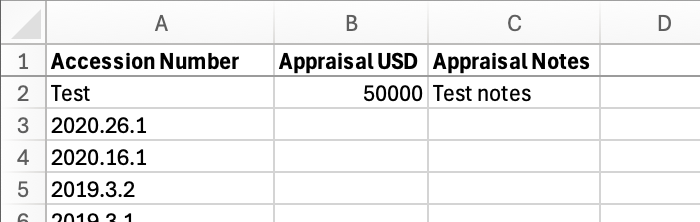
(Disregard if the table you are editing is the same one that is providing rows for the query.)
- Select the field(s) you want to edit, using multiple selection if needed.

The columns to be edited can be in any subquery within the perspective. For example, we could equally well select a field under “Objects Text Entries” in the perspective above.
- Click Fill with AI in the Edit menu.
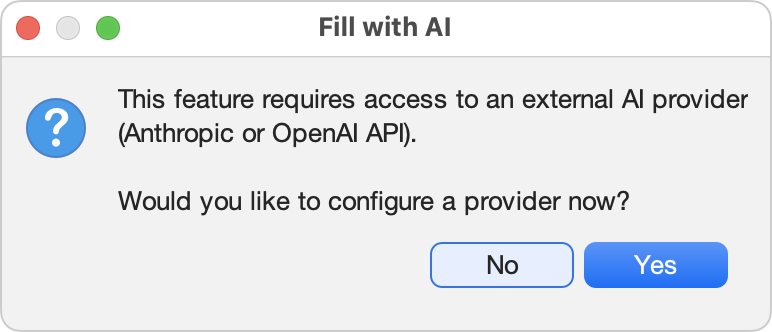
- If this is the first time you are using this feature, you will be asked to configure your AI provider. Proceed and provide an AI provider's API key as needed.
- Provide a prompt for each column you are editing. See examples below. To appraise artworks, for instance, we might use:
- Appraisal USD: “an appraisal of the artwork in US dollars, for insurance purposes”
- Appraisal Notes: “rationale for the appraisal”
Additional instructions can be provided, if needed, in the larger text field underneath.
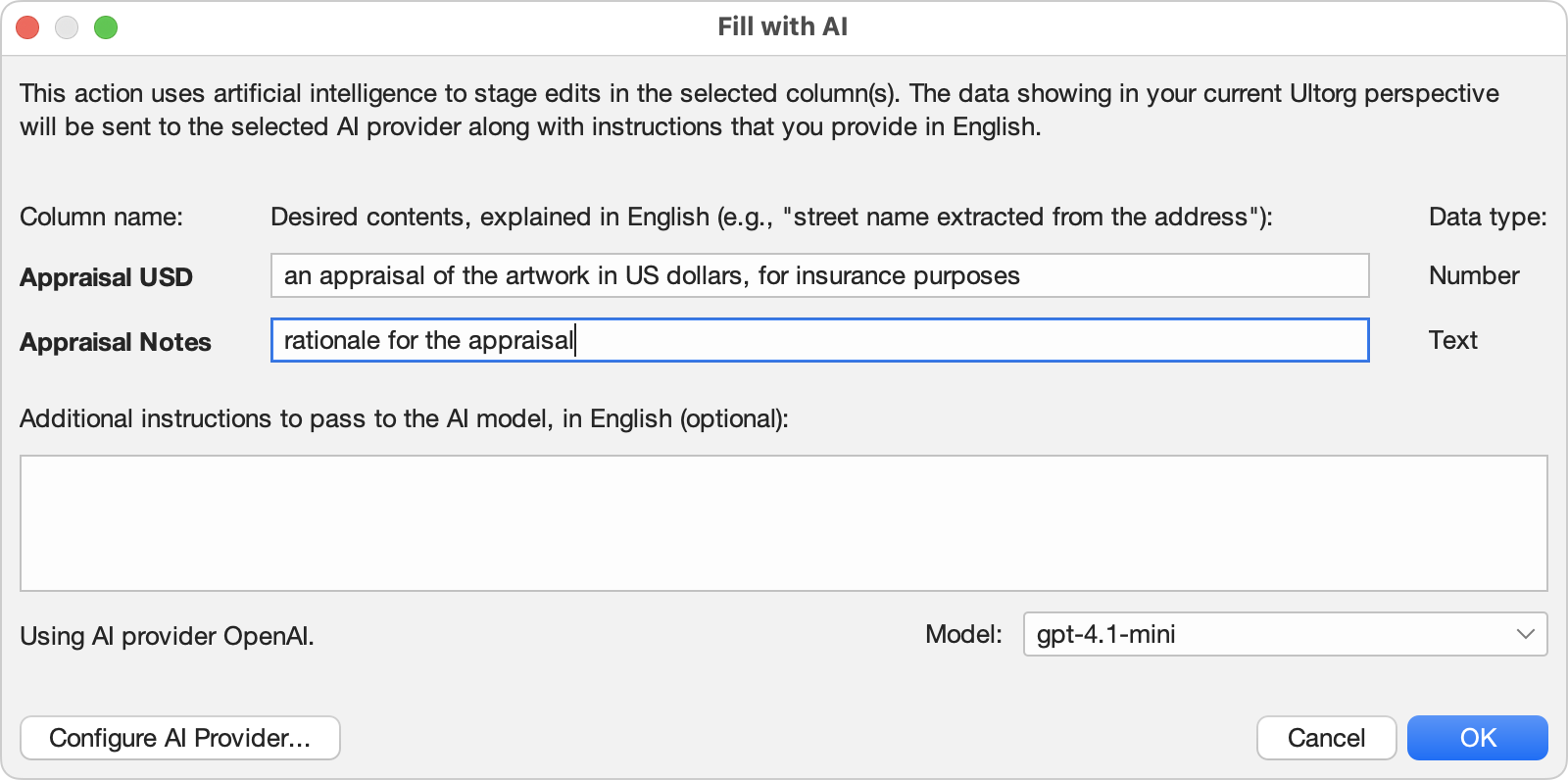
- If desired, pick a specific AI model to use from the Model dropdown. Available models depend on your AI provider, and vary in speed, price, and capability.
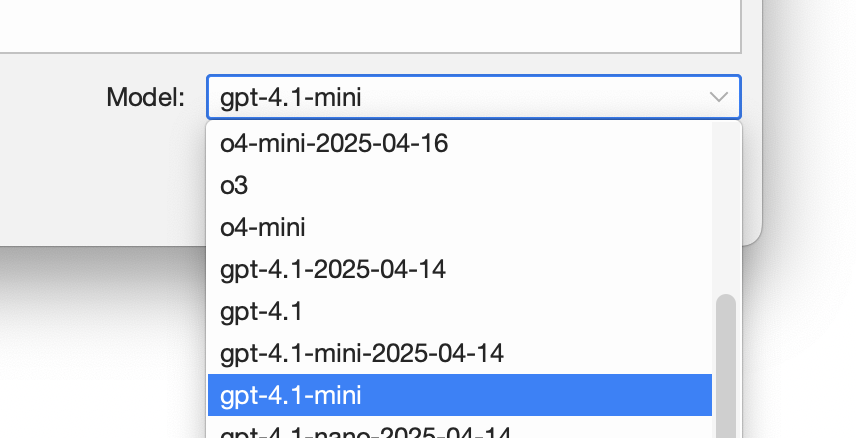
Ultorg will pick a known default model if available, and hide models that are known to be incompatible. Current defaults are claude-sonnet-4-6 for Anthropic and gpt-4.1-mini for OpenAI. New models are frequently released.
- Press OK. AI-generated edits will appear progressively while the Fill with AI dialog remains open. The perspective retains some interactivity while the operation runs; you can scroll up and down, hide or show fields, and such.
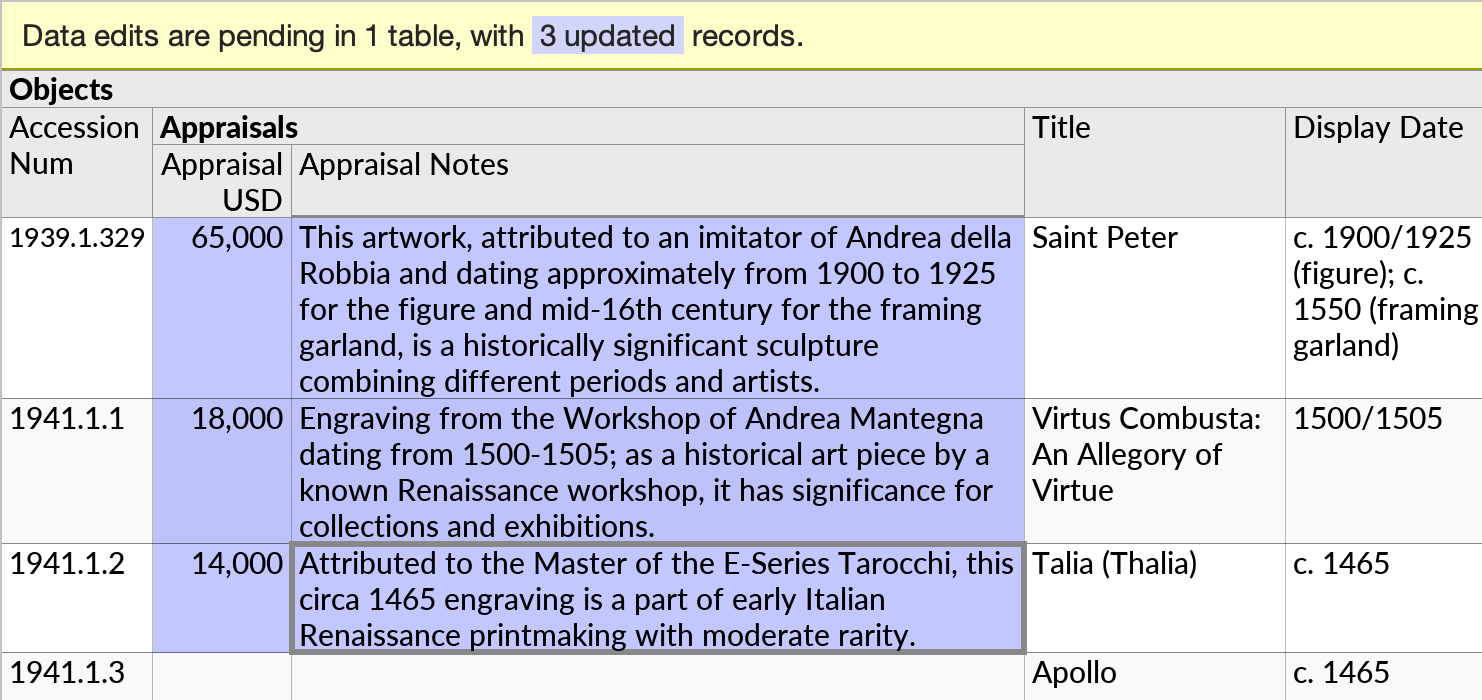
If you press Cancel before the last edit completes, the edits staged so far will remain. You can undo them if desired (Ctrl+Z).
- When the overall operation completes, a short concluding message from the LLM will be displayed. This message may surface ambiguities in the prompt, cases that were hard to decide, or assumptions made during processing.
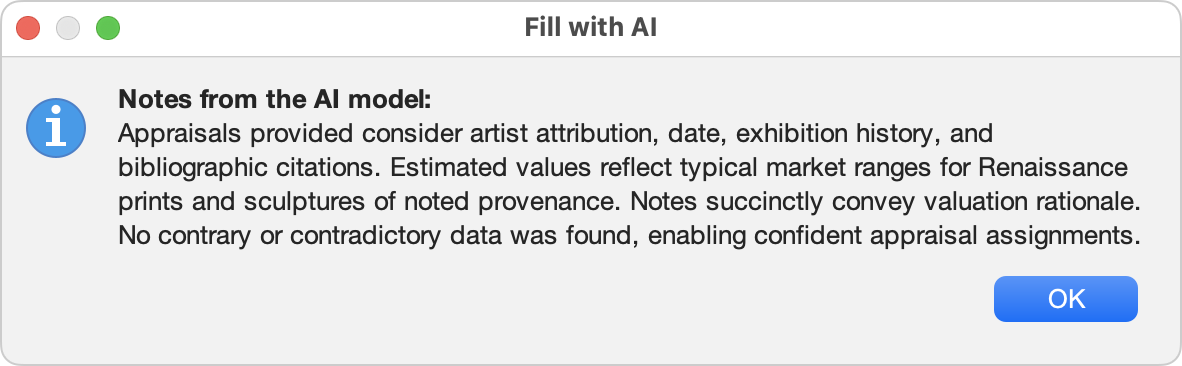
If data was processed in multiple batches, then the summary displayed at the end will be a summary of summaries from each batch.
If there were problems with the output received from the LLM, such as edits to non-existent (hallucinated) rows, or values generated that are incompatible with the data type of the edited column, then those errors will be surfaced in the concluding dialog box as well.
- To write staged edits back to the data source, press Apply Edits.
To compare values before and after the proposed edits, you can press Discard Edits and then toggle with Undo and Redo (Ctrl+Z/Y).
Data Types
The Fill with AI feature works with columns of any standard data type, including numbers, dates, and timestamps. Ultorg will pass instructions to the LLM regarding the correct output format in each case. You do not have to write such instructions yourself.
Example Prompts
A short prompt is usually sufficient, for each column to be edited. Examples:
- “translate to swedish”
- “generate 20 descriptions for fictional support tickets.”
(For these kinds of prompts, note that rows must already exist, or be staged to be inserted via Ctrl+Shift+Plus, before they can be filled in.) - Ad copy brainstorm:
“come up with some extra headlines in each category, for the currently blank rows”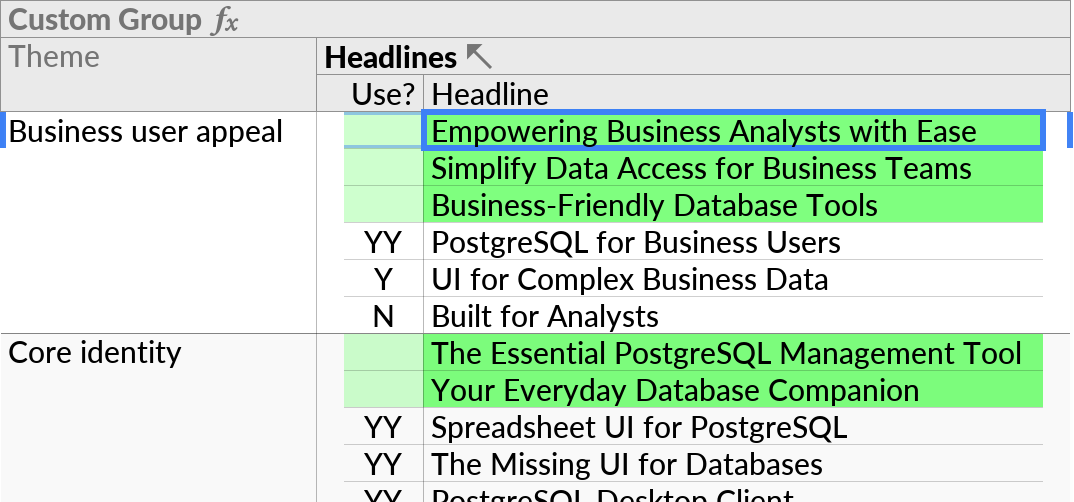
In the screenshot above, the Insert Record (
 ) action was used to stage inserts before invoking Fill with AI.
- To extract the street name from an adjacent “Address” column:
Street Name: “Extract the street name from the address.” - To populate a true/false “engagement” field in a database of sales leads and interactions:
Engagement: “Set this field to true if this timeline entry involved the person being engaged from their side. For example, an email from the person, or a meeting with the person, qualifies as 'true'. But an email that I am sending myself does not, unless I noted that the person responded. Do not count unsubscribes as engagements. For entries not set to true, set the value to false.”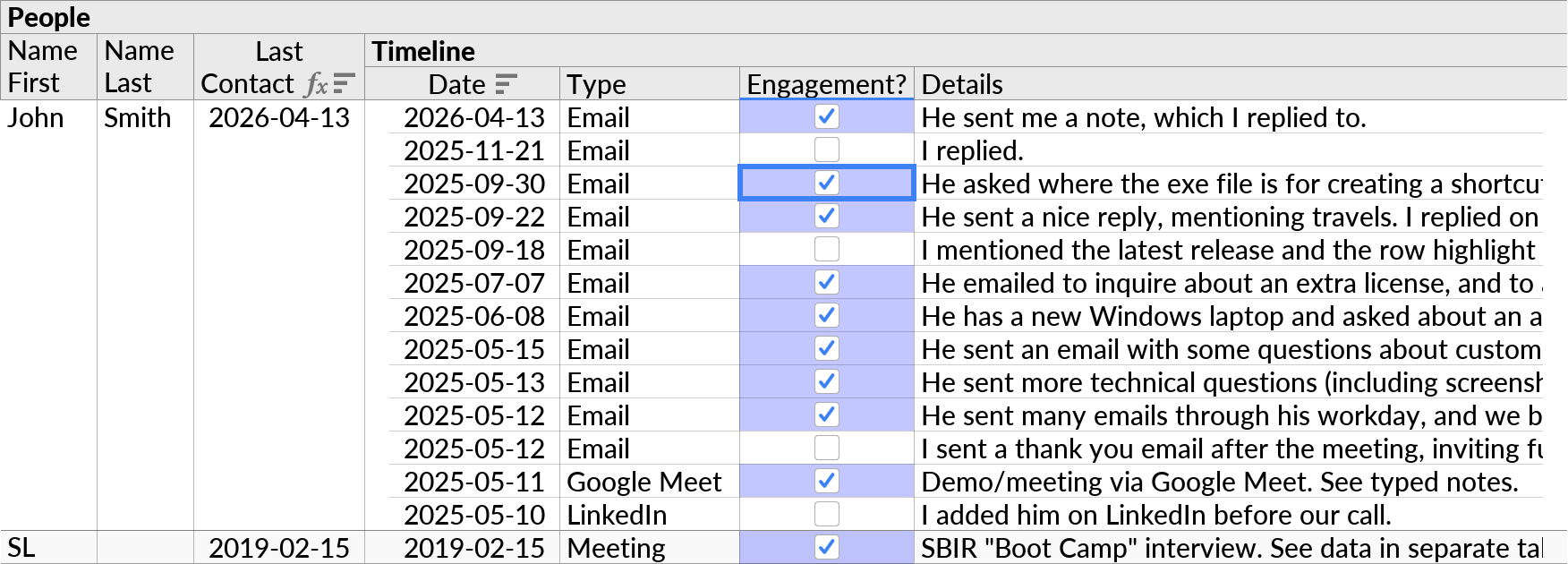
- Qualification of sales leads:
Lead score: “Assign a score from 1 to 10 to each sales lead based on past history and other available data. A higher score means prioritize for current outreach efforts.”
Rationale: “A rationale for the lead score given.” - To lightly anonymize a table of users, authors, or such:
First Name: “A random (but always different) first name of the same gender and similar number of syllables, with the first letter staying the same”
Last Name: “A random (but always different) last name with a similar number of syllables, with the first letter staying the same” - Examples where the LLM must maintain context across multiple rows:
- “Terse notes from an art reviewer who gets increasingly skeptical of the artworks' merits as the list goes on. By the end of the list, the reviewer is completely exasperated by the lack of quality.”
- “a list of numbers from 1 to 20”
For the latter kind of prompts, make sure the amount of data in the perspective is not so large as to cause batching, since this would separate the rows in the context.
Ultorg will supply the remaining parts of the prompt that are needed to make the LLM understand the overall column editing task.
Configuring an AI Provider
The Ultorg desktop application connects directly to an AI provider of your choice, rather than going through an intermediate server. The Configure AI Provider dialog lets you configure a provider of your choice:
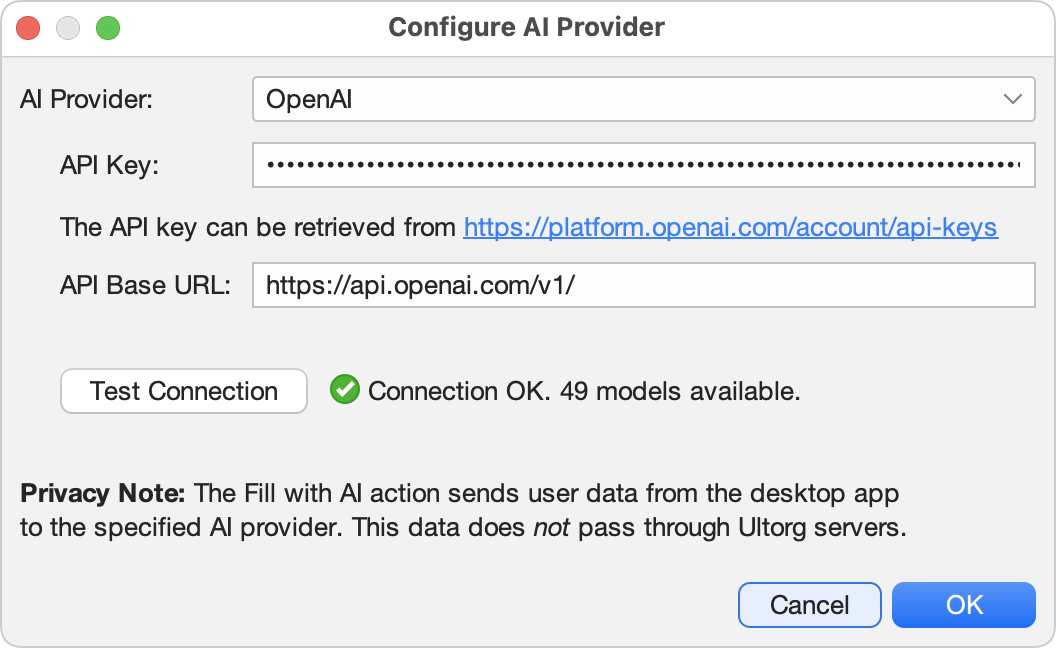
Select the provider type from the dropdown, and enter an API key. Press Test Connection to validate the configuration.
The currently supported providers are:
- Anthropic. An API key can be created here. Paid service.
- OpenAI. An API key can be created here. Paid service.
- Other providers compatible with the OpenAI API.
For such providers, select OpenAI and change API Base URL to the appropriate setting.
Models must support streaming and structured JSON output.
The API key will be stored in your operating system's user directory.
Semantics
The data sent to the LLM includes the following:
- General instructions about the automated editing task, hardcoded in Ultorg.
- The data visible in your perspective as of the time you click OK in the Fill with AI dialog, incorporating any existing staged data edits. If batching is used, only a subset of root-level records will be submitted at a time.
- Field names as displayed in Ultorg. The technical table column names that exist at the data source level are intentionally omitted.
- For each column to be edited:
- The name of the column as displayed in Ultorg.
- The data type of the column, and instructions for providing values of that data type.
- Whether or not the column supports null values, and how to emit them.
- If the column contains foreign key values, some related instructions.
- The instructions you supply for the column.
- Any additional instructions you optionally provide in the Fill with AI dialog.
The LLM is not obliged to edit every row. It can only, however, edit rows that were visible in the perspective as of the time you pressed OK. You can scroll down to load more rows. In any case, only the selected column(s) will be edited.
You can keep working with the perspective while the operation runs. New data edits, specifically, will interrupt the operation.
Text fields are automatically ordered before other fields in the output format that is requested from the LLM. This allows the reasoning in “rationale”-type fields to be included in the recent context when the LLM subsequently generates, for instance, numerical scores.
Batching
LLMs are limited in the amount of data they can process at any one time, and perform best when this context is not too close to the absolute limit.
For the Fill with AI feature, perspective data in excess of 100 KB (~30K “tokens”) will be automatically split into smaller batches. The dialog box will notify you accordingly:

Batching happens transparently, and you will not normally need to worry about it. However, it means that the LLM may not be aware of every row in your perspective at any given time.